1. An internet connection is required for smooth activation of the software.
2. If you are the account manager of a customer who has purchased a subscription to Woodwork for Inventor, please log in to your account here.
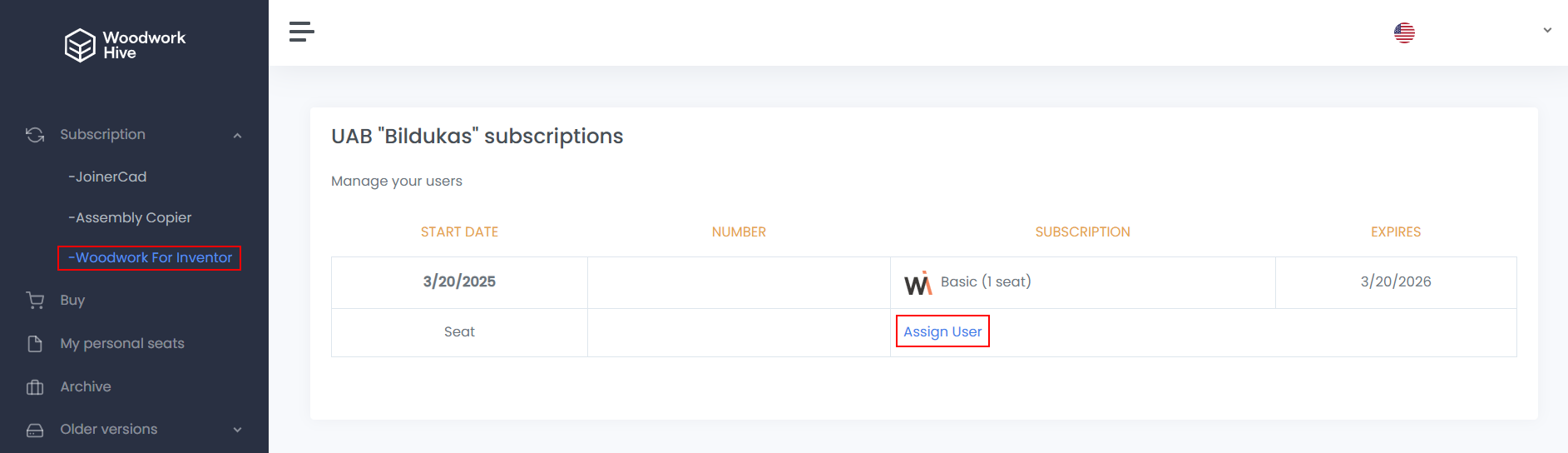
3. Then click on the Woodwork for Inventor link on the left-hand side.
4. The window that opens displays your existing Woodwork for Inventor subscription, where you need to add a user to the workspace.
Note. When adding a user, you must enter the email address of their existing Autodesk account.
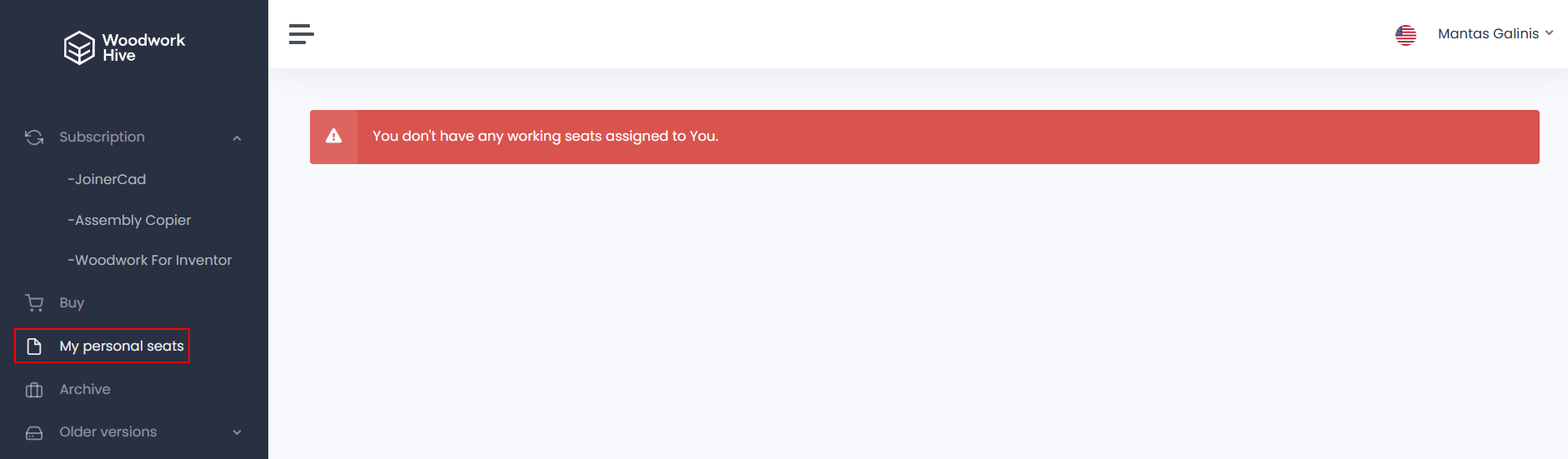
5. If the user added to the subscription workspace is not the manager of the Woodwork for Inventor account, that person must also confirm their addition to the subscription in their personal Woodwork for Inventor account under “My personal seats”.
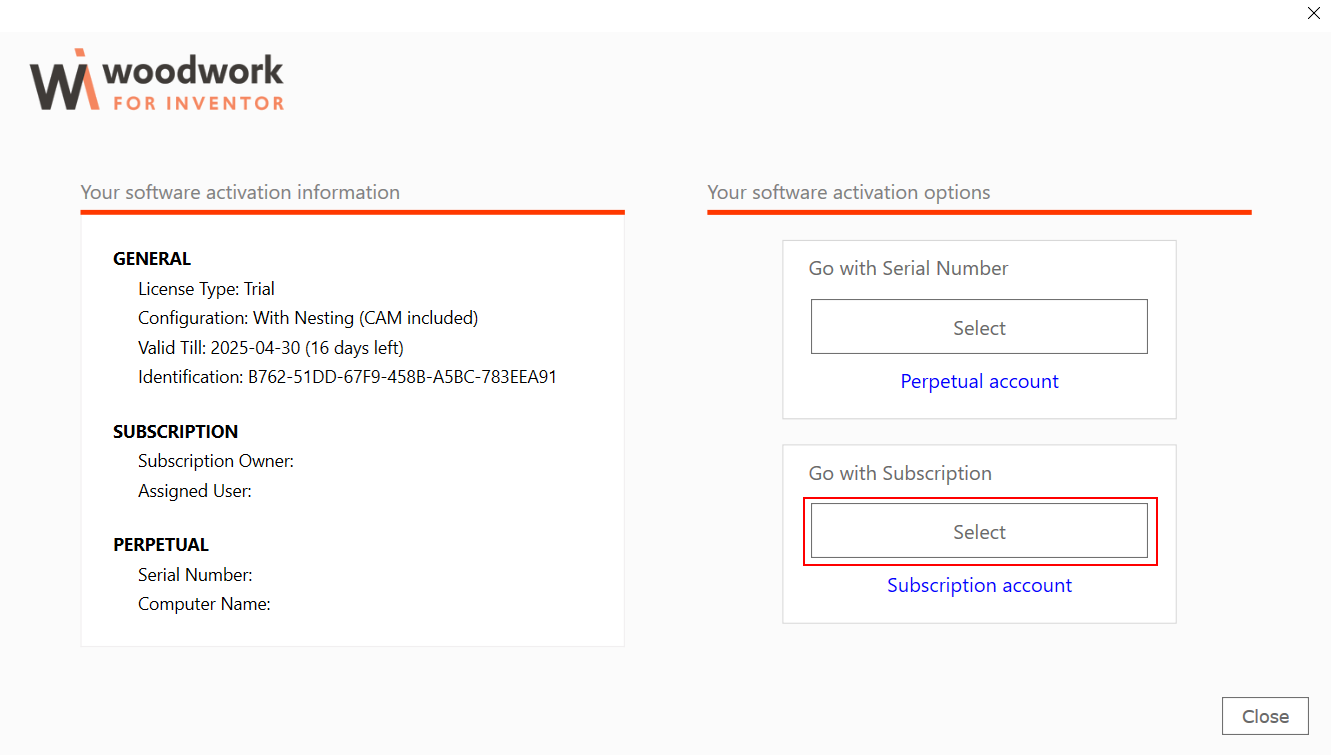
6. After completing the above steps, the person assigned to the subscription workspace now needs to run Autodesk Inventor, click the “Select” button in the Go with Subscription section of the license management window and log in to the Woodwork for Inventor environment with their Autodesk account.
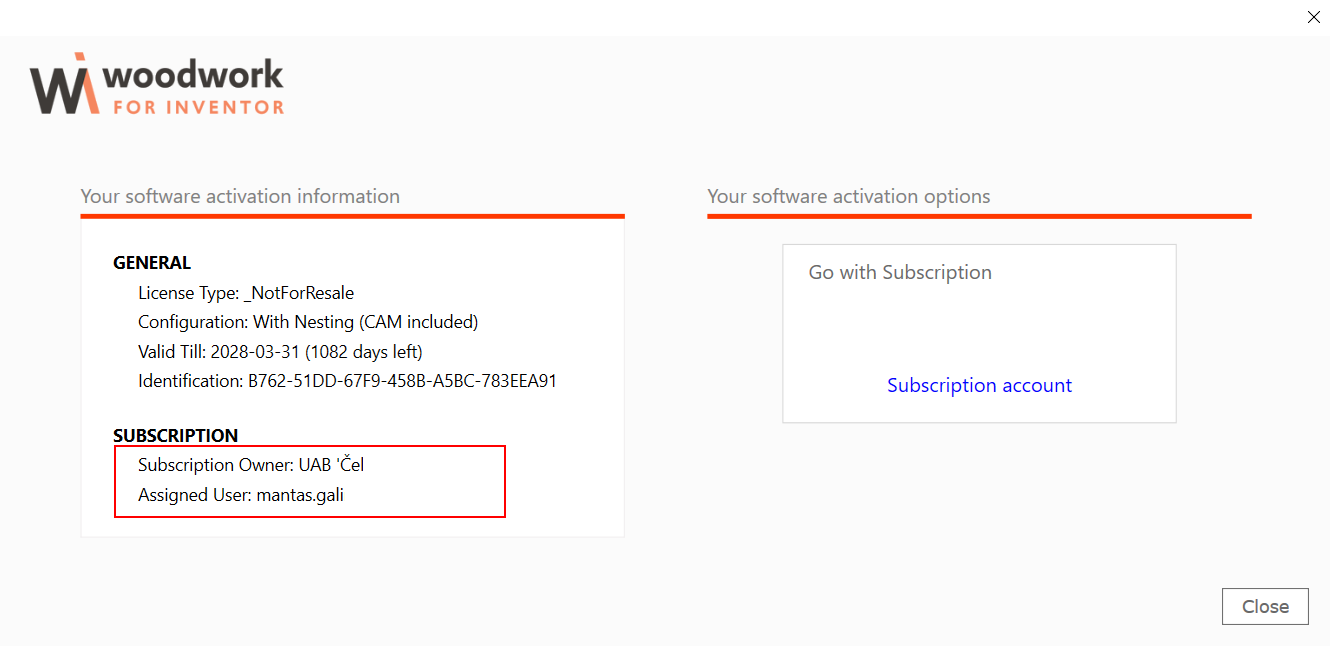
7. You can now see your subscription information in the Subscription section of the license management window, which means that you can enjoy the full functionality of Woodwork for Inventor software.