
1.To ensure smooth activation of the software, your computer must have an internet connection.
2.Open Autodesk Inventor and click “Select” in the appearing Woodwork for Inventor software license management table (topic - Go with Serial Number).
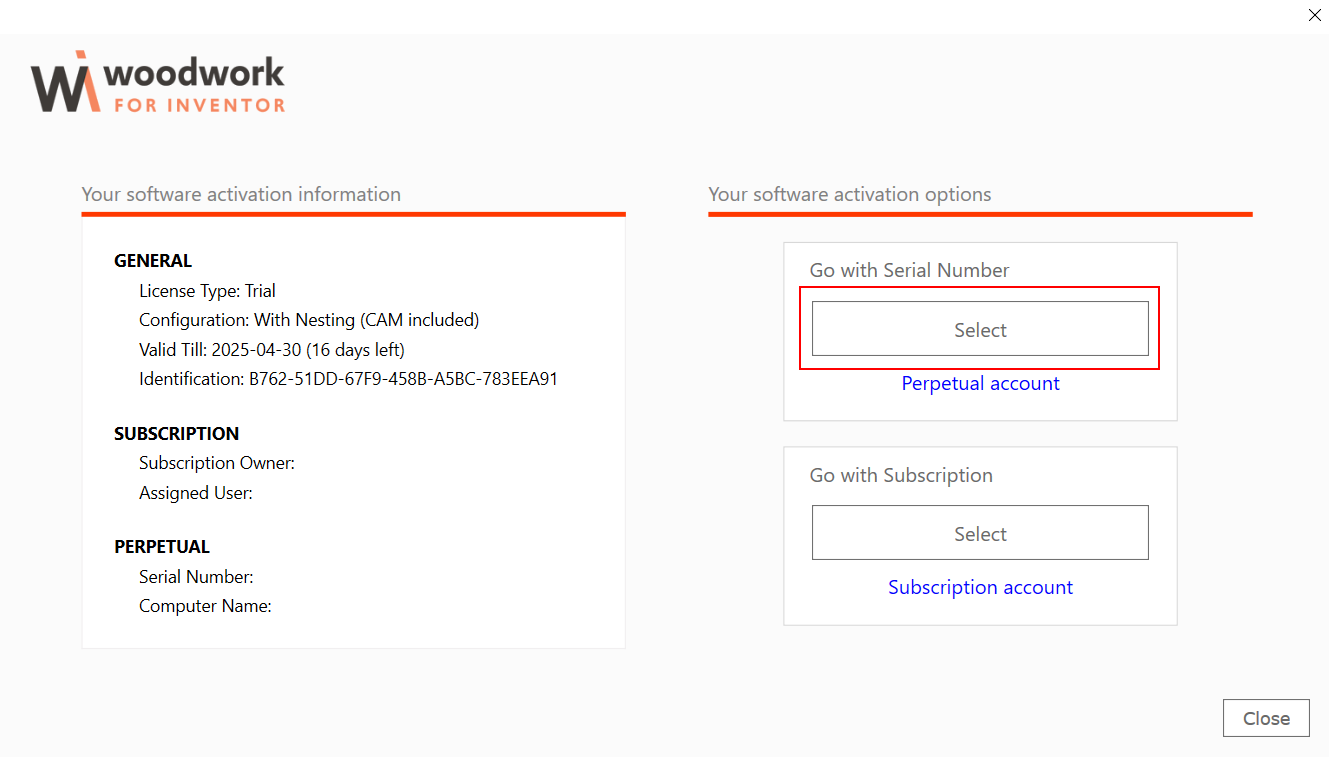
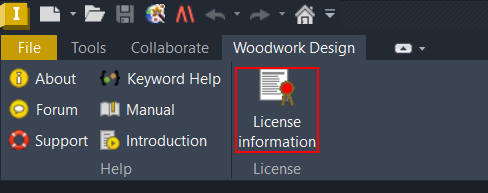
Note The license management table may also be accessed by clicking "About" on the “Woodwork Design” menu bar.
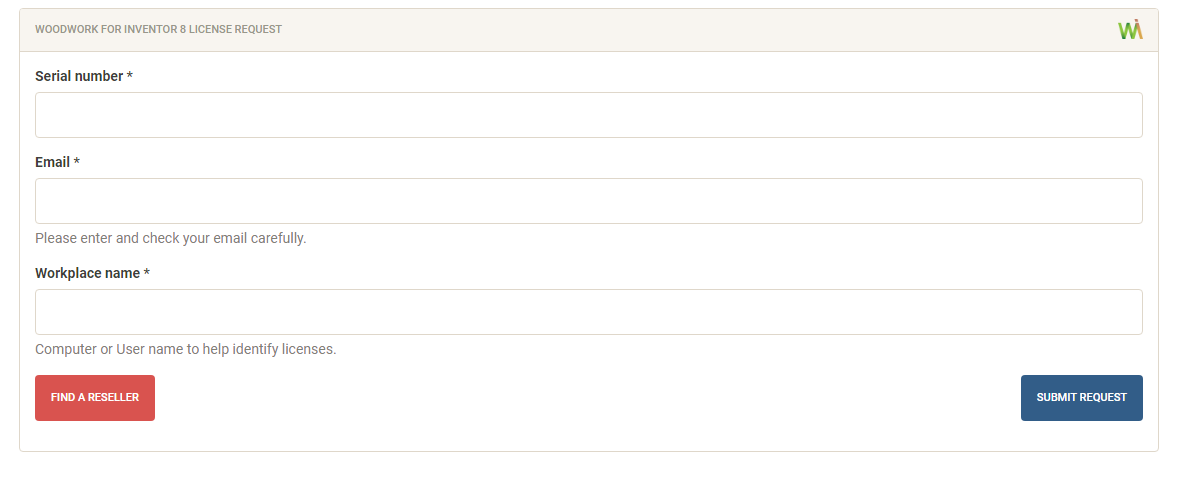
3.In the appearing software license activation request window, enter the Serial Number that you have received from your software dealer as well as your email address and click “Submit Request”.
4.The software stand-alone license will be generated immediately (in the event of force majeure – within 24 hours). You will be notified of its creation to your email address provided in the license activation request window.
5.After you have been notified of the creation of a stand-alone license file via email, restart Autodesk Inventor.
6.In the appearing Woodwork for Inventor software license management table, your license Expiration Date status will be automatically changed to “Permanent” or "Home". It depends on what type of license you bought.
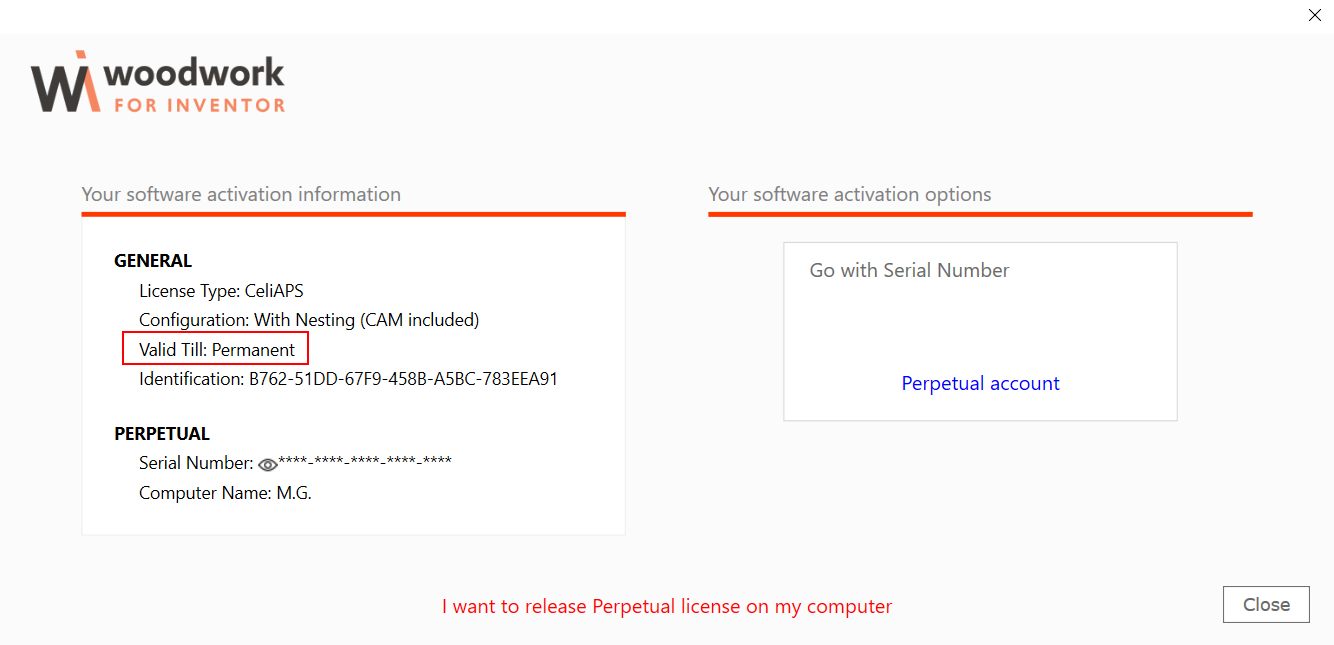
7.The automatic installation of the Woodwork for Inventor software stand-alone license has been completed successfully.
NOTE!!! If the automatic installation of the stand-alone license has failed, you should place this license on your computer manually.
Automatic perpetual license activation Print
Modified on: Fri, 23 Oct, 2026 at 11:40 AM
Did you find it helpful? Yes No
Send feedbackSorry we couldn't be helpful. Help us improve this article with your feedback.